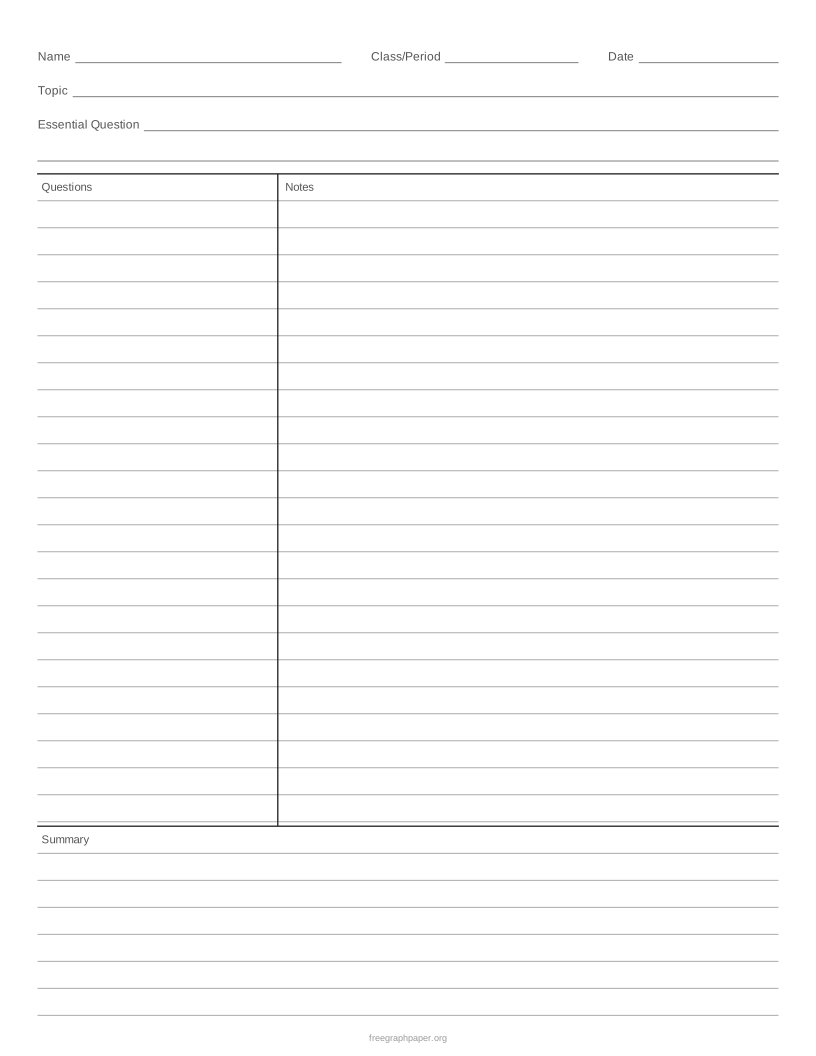
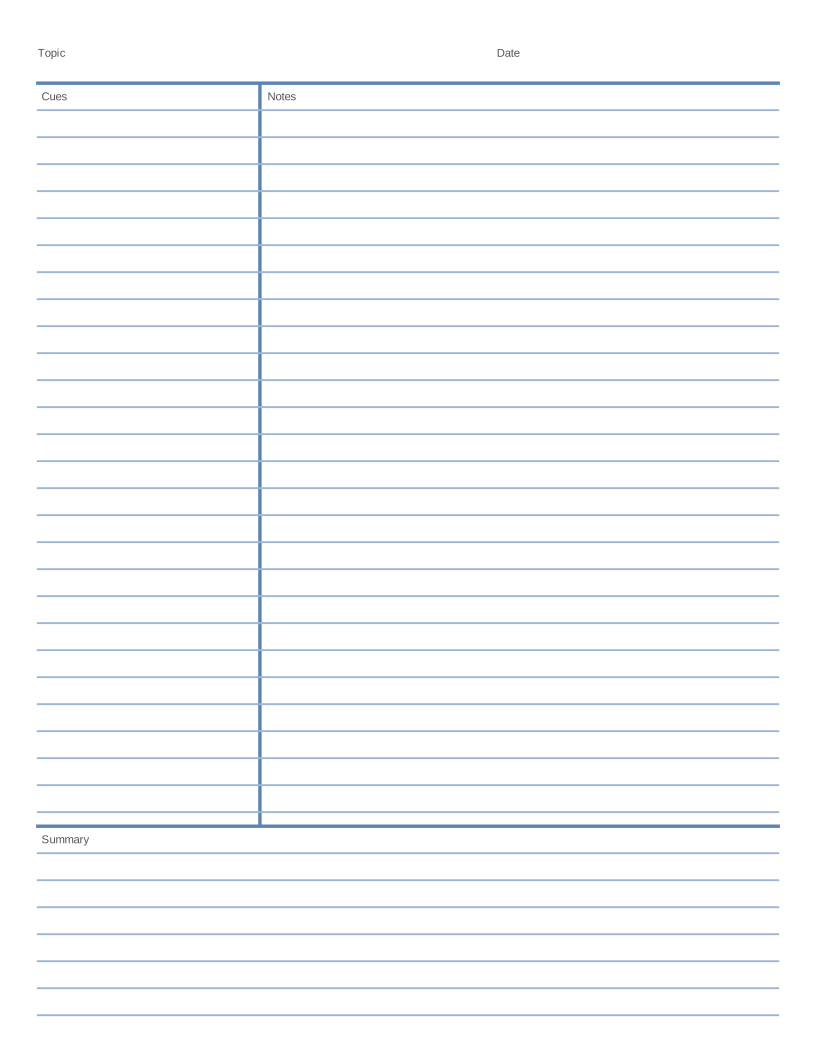
The essential question is the big question the lesson should answer. Copy it from the board at the start of class; by the end, your notes and your summary should answer it. The left column is labeled Questions because AVID asks you to turn each chunk of notes into a question you could be tested on.
You can change the line spacing (college or wide ruled), make the questions column wider, give the summary more room, or switch the notes area to a graph grid for math. The PDF prints at actual size on Letter or A4.
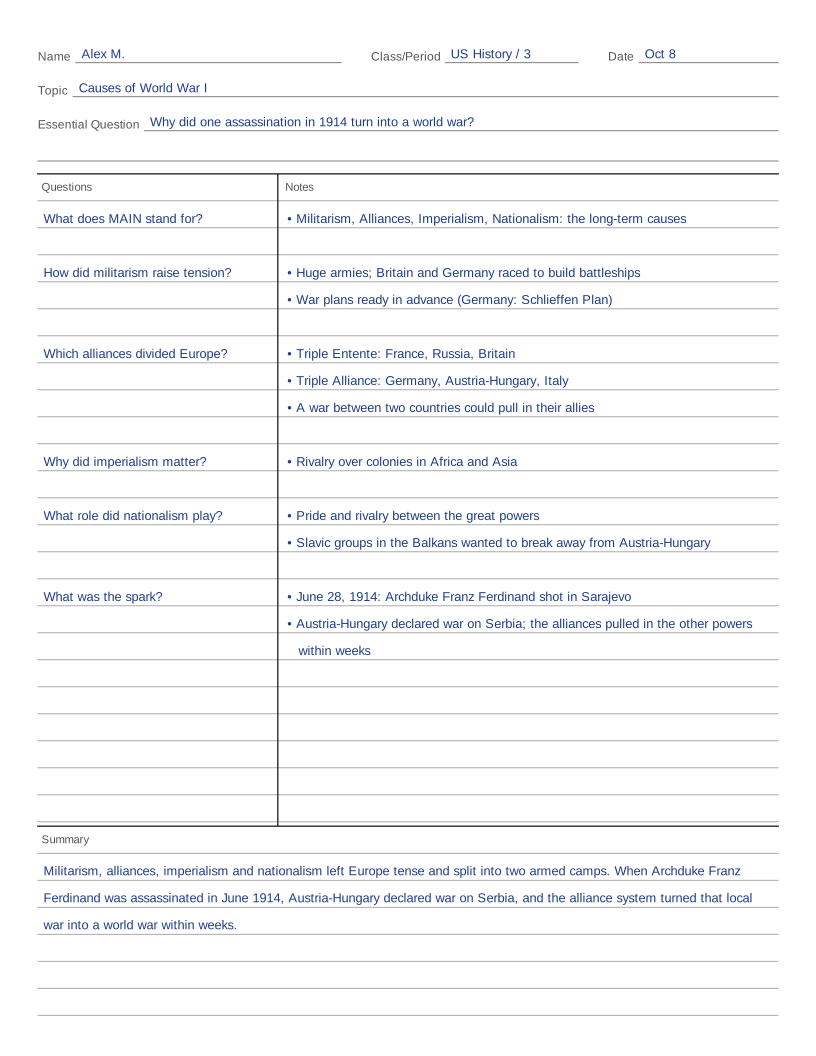
Filled-in example
What people use it for
- Daily notes in the AVID elective and in content classes
- Math notes with a graph grid in the notes area
- Notes from a textbook chapter, article or video lesson
- Keeping a binder of notes ready for binder checks
How to print it
- Choose the paper type, grid size and paper size above. The preview updates as you go.
- Click Download PDF (or Print to open it straight away).
- In the print dialog, set the scale to 100% or Actual size and match the PDF paper size to the paper in the tray. Measure a known grid length with a ruler before using the printout for scale work.
More free templates
 Free Printable Graph Paper
 Printable Grid Paper
 1/4 Inch Graph Paper (Quad Paper)
 5mm Graph Paper
 1 cm Graph Paper (Centimeter Grid)
 1 Inch Graph Paper
 Engineering Paper
 Dot Grid Paper
 Isometric Graph Paper
 Isometric Dot Paper
 Hexagonal Graph Paper
 Coordinate Grid Paper
 Polar Graph Paper
 Printable Lined Paper
 A4 Graph Paper
 1/8 Inch Graph Paper
 1/2 Inch Graph Paper
 Millimeter Graph Paper
 2 mm Graph Paper
 10 Squares per Inch Graph Paper
 11 × 17 Graph Paper
 A3 Graph Paper
 Legal Size Graph Paper
 Graph Paper with Numbers
 First Quadrant Graph Paper
 Printable Handwriting Paper
 Primary Writing Paper with Picture Box
 Cornell Notes Template
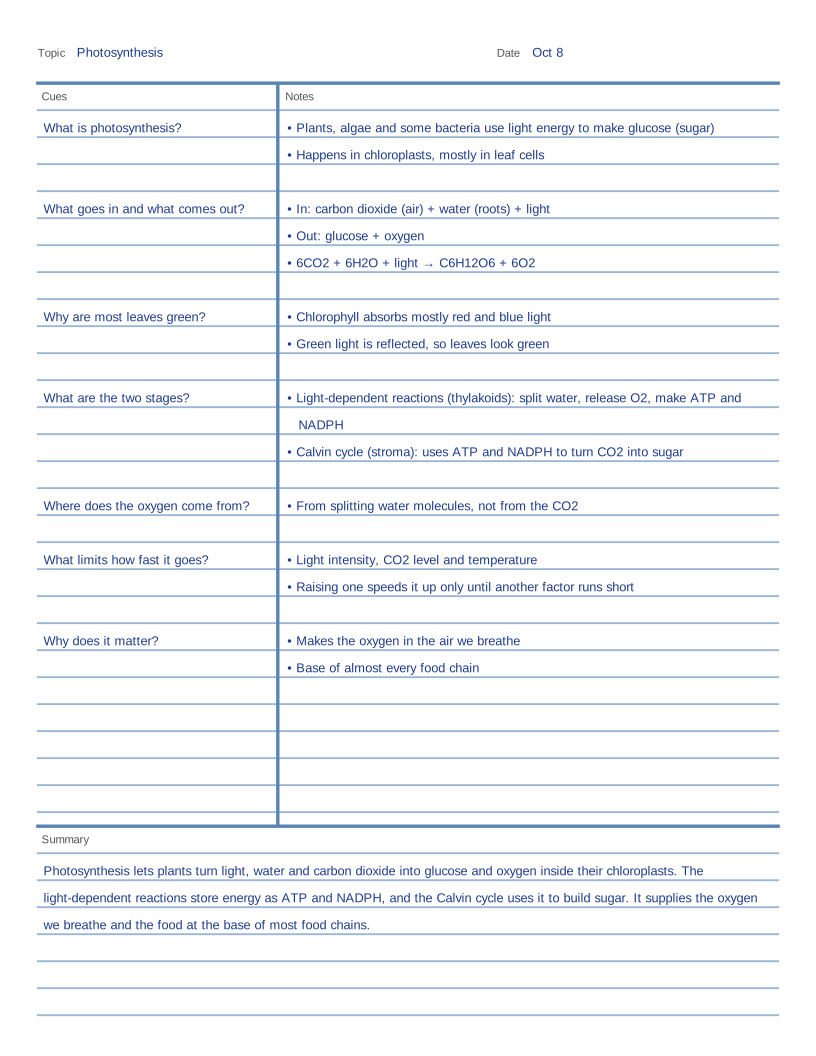 Cornell Notes Examples
 Blank Sheet Music (Music Staff Paper)
 Printable Storyboard Template
Frequently asked questions
What is the AVID Cornell notes format?
It is a Cornell notes page with a heading for your name, class and period, date, topic and an essential question. Below it, the left column is for questions, the wider right column is for notes, and the box at the bottom is for a summary that answers the essential question.
What are the five phases of AVID focused note-taking?
1. Taking notes. 2. Processing notes: revising them by underlining, highlighting, chunking and writing questions. 3. Connecting thinking: adding your own questions and links to what you already know. 4. Summarizing and reflecting on what you learned. 5. Applying learning: using the notes to study, write or complete a task.
Can I use this template for math?
Yes. Set "Notes area" to "Graph grid" to get squares in the notes column for equations and graphs. The questions column and summary stay lined.
Can I make the questions column wider?
Yes. Under "Cue column", choose Wide (3 inches) for longer questions, or Narrow (2 inches) to leave more room for notes.